Subscribe to OW blog for an instantly better inbox
Oops! Something went wrong while submitting the form.

Articles and Podcasts on Customer Service, AI and Automation, Product, and more
.webp)
Great research has never been about speed alone. It’s about asking the right questions, understanding the context behind them, and uncovering insights that help teams make better decisions.
Optimal's AI Interviewer is designed to support that process. It’s designed to work alongside researchers and teams, so you can move faster without losing the depth and human nuance that makes research valuable.
Before building AI Interviewer, we spoke with and surveyed researchers, designers, and product teams to how they approach interviews today and where AI could genuinely help.
What we heard was consistent:
AI isn’t useful if it ignores how your team works. So instead of building a generic interviewer, we focused on building an AI Interviewer that fits into your current workflows and keeps researchers and teams in the driver's seat.
Here’s what we learned and how we brought it to life with Optimal’s AI Interviewer.
The best interviews start with a clear understanding of what you’re trying to uncover. With the AI Interviewer, you can add your research goals, audience details, company and product context, and additional context you want the AI to consider. This means the AI doesn’t just ask questions; it understands what you’re trying to learn and helps guide conversations in the right direction.
The same context also powers AI insights, helping ensure summaries, key themes, and citations are relevant, accurate, and aligned with what you're trying to learn.
One of the concerns with AI-led interviews is not having enough control. We’ve designed the AI Interviewer with this in mind.
For each question, you can choose how deeply you would like the AI Interviewer to probe and follow-up. You decide when deeper exploration is valuable, how the conversation flows, and the AI can then carry this out on your behalf.
AI Interviewer helps remove some of the barriers that make qualitative research difficult to scale. Use it to:
This isn’t about replacing researchers. It’s about removing operational work so you can focus on higher-value work, like synthesis, storytelling, and decision-making.
Every session comes with recordings, key summaries, and AI-generated insights with clear detailed evidence. Instead of reviewing hours of footage, you can quickly find what matters and confidently back it up. Review insights across your full study, or dive deeper into individual sessions and specific questions.
On the roadmap: Once your interviews are complete, you can use AI Chat to go further with your data and explore patterns across sessions, ask follow-up questions, and validate assumptions with real evidence.
Let’s address the elephant in the room. AI-led interviews aren’t something everyone is immediately comfortable with, and that’s fair. There are real limitations.
Some research scenarios require human sensitivity and judgment. Nuance, emotion, and edge cases still benefit from a human touch. Vulnerable populations and complex topics should always be handled with care. Optimal values a human-in-the-loop approach and know an AI Interviewer isn’t always suitable. With that in mind, we made sure that:
The AI Interviewer supports your work. It doesn’t replace your expertise.
AI Interviewer is now available in early access, and we’re continuing to learn from the teams using it. If you’re looking to scale your research without scaling your workload, run interviews across time zones, and spend less time on logistics and more time on insights, we’d love for you to try it.
👉 Book a demo to see how it fits into your workflow.
Already with Optimal? Register your interest for early access.
Having a library of user research books is invaluable. Whether you’re an old hand in the field of UX research or just dipping your toes in the water, being able to reference detailed information on methods, techniques and tools will make your life much easier.
There’s really no shortage of user research/UX reading lists online, so we wanted to do something a little different. We’ve broken our list up into sections to make finding the right book for a particular topic as easy as possible.
These books cover everything you need to know about a number of UX/user research topics. They’re great to have on your desk to refer back to – we certainly have them on the bookshelf here at Optimal Workshop.
Mike Kuniavsky
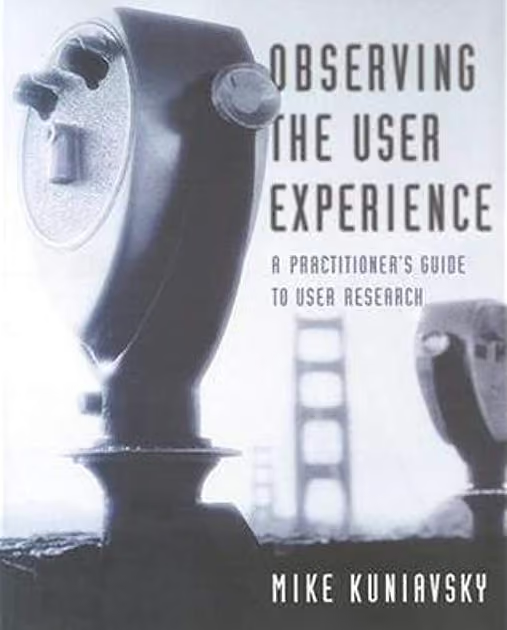
This book covers 13 UX research techniques in a reference format. There’s a lot of detail, making it a useful resource for people new to the field and those who just need more clarification around a certain topic. There’s also a lot of practical information that you’ll find applicable in the real world. For example, information about how to work around research budgets and tight time constraints.
Erika Hall
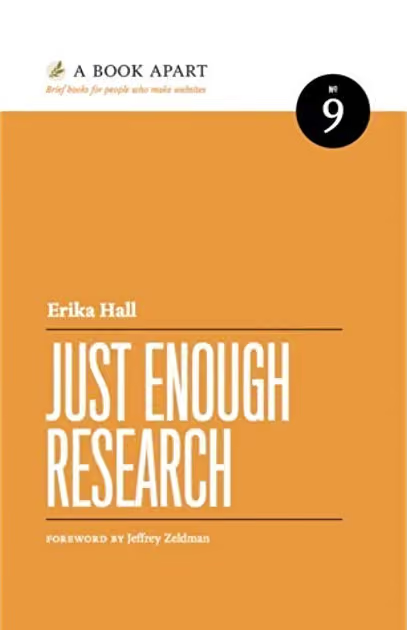
In Just Enough Research, author Erika Hall explains that user research is something everyone can and should do. She covers several research methods, as well as things like how to identify your biases and make use of your findings. Designers are also likely to find this one quite useful, as she clearly covers the relationship between research and design.
Harry Hochheiser, Jonathan Lazar, Jinjuan Heidi Feng
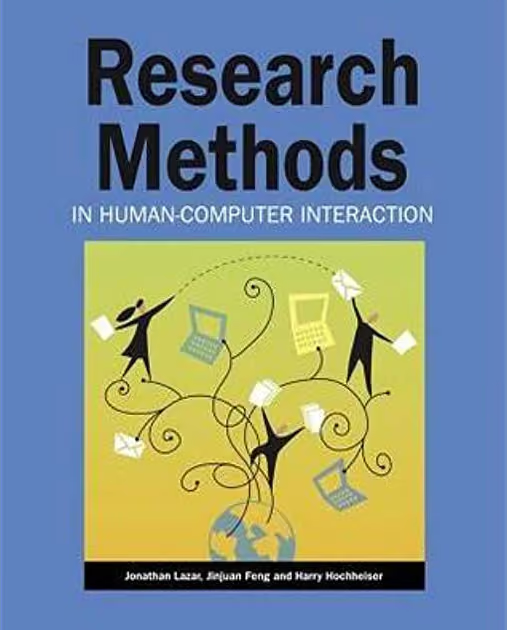
Like Observing the User Experience, this is a dense guide – but it’s another essential one. Here, experts on human-computer interaction and usability explain different qualitative and quantitative research methods in an easily understandable format. There are also plenty of real examples to help frame your thinking around the usefulness of different research methods.
If you’re new to information architecture (IA), understanding why it’s such an important concept is a great place to start. There’s plenty of information online, but there are also several well-regarded books that make great starting points.
Peter Morville, Louis Rosenfeld

You’ll probably hear this book referred to as “the polar bear book”, just because the cover features a polar bear. But beyond featuring a nice illustration of a bear, this book clearly covers the process of creating large websites that are both easy to navigate and appealing to use. It’s a useful book for designers, information architects and user researchers.
Abby Covert

This is a great introduction to information architecture and serves as a nice counter to the polar bear book, being much shorter and more easily digestible. Author Abby Covert explains complex concepts in a way anyone can understand and also includes a set of lessons and exercises with each chapter.
For those new to the task, the prospect of interviewing users is always daunting. That makes having a useful guide that much more of a necessity!
Steve Portigal
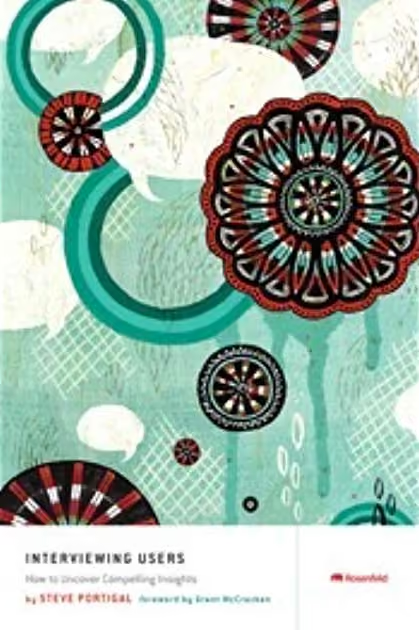
While interviewing users may seem like something that doesn’t require a guide, an understanding of different interview techniques can go a long way. This book is essentially a practical guide to the art of interviewing users. Author Steve Portigal covers how to build rapport with your participants and the art of immersing yourself in how other people see the world – both key skills for interviewers!
Web usability is basically the ease of use of a website. It’s a broad topic, but there are a number of useful books that explain why it’s important and outline some of the key principles.
Steve Krug
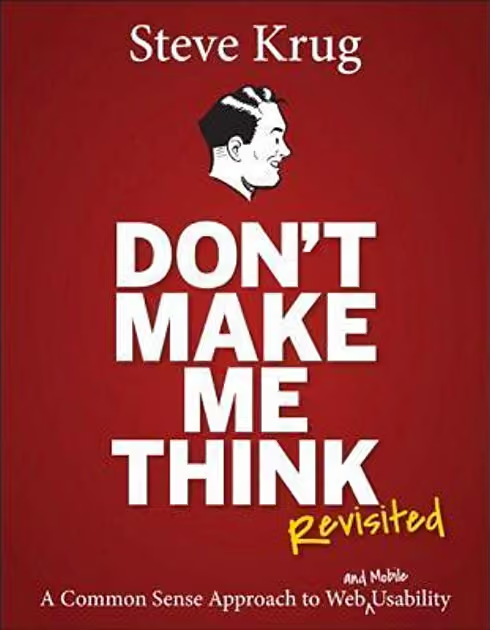
Don’t Make Me Think is the first introduction to the world of UX and usability for many people, and for good reason – it’s a concise introduction to the topics and is easy to digest. Steve Krug explains some of the key principles of intuitive navigation and information architecture clearly and without overly technical language. In the latest edition, he’s updated the book to include mobile usability considerations.
As a testament to just how popular this book is, it was released in 2000 and has since had 2 editions and sold 400,000 copies.
The design–research relationship is an important one, even if it’s often misunderstood. Thankfully, authors like Don Norman and Vijay Kumar are here to explain everything.
Don Norman

This book, by cognitive scientist and usability engineer Don Norman, explains how design is the communication between an object and its user, and how to improve this communication as a way of improving the user experience. If nothing else, this book will force you to take another look at the design of everyday objects and assess whether or not they’re truly user-friendly.
Vijay Kumar
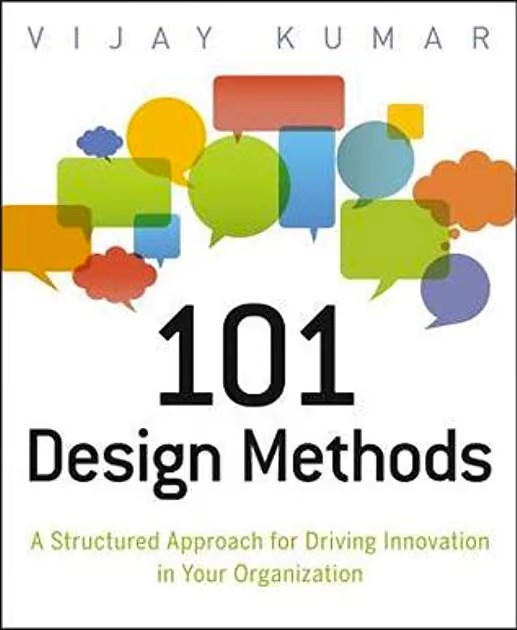
A guidebook for innovation in the context of product development, this book approaches the subject in a slightly different way to many other books on the same subject. The focus here is that the practice of creating new products is actually a science – not an art. Vijay Kumar outlines practical methods and useful tools that researchers and designers can use to drive innovation, making this book useful for anyone involved in product development.
We've put together a list of all of the above books on Goodreads, which you can access here.
For experienced practitioners and newcomers alike, user research can often seem like a minefield to navigate. It can be tricky to figure out which method to use when, whether you bring a stakeholder into your usability test (you should) and how much you should pay participants. Take a look at some of the other articles on our blog if you’d like to learn more.
Summary: Usability testing is crucial to product success, and there’s really no excuse not to do it. Here’s a quick guide to prepare you for your first usability test.
Back in 1994, an online shopping website called Amazon launched to little fanfare. With just a handful of products, it seemed like yet another internet company destined to join the rank and file like so many others in the dot-com bubble. But Amazon had a very different path to follow. The website soon grew rapidly in scale and value, and within 5 years was a leader in online shopping. As any internet user now knows, Amazon does a whole lot more than just sell books.
It wasn’t clever advertising that led to the massive success of Amazon (although that certainly helped), but a drive to place usability at the core of the company’s focus. According to Forbes, Amazon CEO Jeff Bezos invested 100 times more in the customer experience than advertising during Amazon’s first year of operation, meaning everything from how customers make their way through the website to how they get support from Amazon staff. Reinforcing the value of the customer experience, Nielsen Norman Group found that organizations that spend just 10% of their budgets on usability will see, on average, a 135% increase in their desired metrics.
You can’t afford to skip over usability testing. It’s essential to give products and services the best chance of succeeding – and here’s how you get started.
Unlike some other more exploratory user research methods, usability testing is very much focused on testing a prototype. It’s true that you can test a finished product, but it’s best practice to test prototypes as you develop them, iterate and improve, and then test again. This regular cadence of test/develop/feedback means the users’ point of view is constantly fed back to the people who need to understand it.
We won't dive into tools and how to actually design a prototype, but the key thing is that the prototype should be informed by an understanding of the customer and how they're going to be using the product/service (e.g., generative research). Again, the best way to kick off the testing loop is to design something relatively rough and conceptual, and then test and improve before developing detailed designs.
This leads in nicely to our next point, which is...
What is it that you want to find out about how people use your prototype? Setting clear goals for your testing will, in turn, help you to define some clear metrics. While sometimes it’s immediately obvious what you need to test, in other cases (especially if you’re new to the idea of usability testing) it can be a bit more of a struggle. This is where it’s best to engage with those people who have a stake in the outcome of your research.
You can also turn to your existing users. Look at how they currently use your product and use this to decide on key tasks for them to perform. Keep in mind that you want to test how a person completes a particular task – you’re not testing a particular feature. Your focus should be on how the feature supports the thing that a person is trying to do.
Now for the part that often stumps new user researchers: figuring out metrics. It’s an understandably confusing process at first. There are a number of metrics that you can use to measure usability.
Here are some examples of goals (and metrics) for usability testing:
It’s best to nail down your goals and metrics before you start working on the plan for how you’ll run your usability tests. You can also use usability scales to help with this. This article from UX Collective provides a great rundown on some of the most popular metrics you can use in your testing.
With an understanding of what you want to learn, it’s time to start putting together your testing plan. This is basically a list of the tasks you’ll give to participants in order to evaluate your prototype, as well as the script that you’ll follow to ensure you’re covering everything you need to during each testing session. Yes, even experienced user researchers bring along a script!
For your tasks, take a look at your prototype with a specific eye towards the areas that you’d like to test. If you want to test a sign-up flow, for example, figure out the ideal path that someone should take to successfully complete this process and break it down step by step. Why is this important? Well, if you have an idea of the steps needed to complete a task, you can evaluate the prototype by seeing how users make their way through them.
Here’s an example of what that sign-up flow could look like for a website, step by step:
Chances are, there will be a number of ways to complete your task, and it’s important to account for each of them. Don’t assume that just because you’ve designed a fancy navigation, users will head there first when tasked with finding a specific page – they may head straight down to the footer. This means your list should account for these alternative steps.
It's always a good idea to run a pre-test with someone to make sure the tasks make sense, the script flows, and also time the session to make sure it fits in with what you planned.
Once you’ve come up with your tasks, it’s time to move onto the script. As we mentioned above, even experienced user researchers like to have a script on hand during usability tests. Here’s an example script that you can tweak and refine for your own purposes. Over time, you’ll probably find that you develop a template that works really well for you.
Note: You may also want to consider mentioning asking for recording consent if you plan to record the session.
If you’d like an alternative template, Steve Krug has one on his website here.
Take some time to get your script to a point where you feel comfortable going through it, and then turn your attention to the tasks you’ll be running during your session.
To start off, give a high-level explanation/story that your participant can use to get into the right frame of mind, and then add any detail about why they might be trying to complete that particular task.
Lastly, there’s the final wrap-up/debrief. Allocate some time at the end of your session to ask for any final comments and to thank the participant for coming along.
Having a solid script and a list of tasks is really just one part of the usability testing equation. It’s equally important to take good notes during sessions and then document these for future reference – and analysis.
Unfortunately, it’s often a time-consuming process. To help with capturing notes effectively, it's important to use the right tool. A qualitative notetaking tool like Reframer can help you not only capture your insights all in one place, but also make it easy to analyze your data and spot themes. Also, using tags helps you to filter observations based on each tag later in analysis, to help you identify pain points and moments of delight.
You can learn more about Reframer and the other tools on the Optimal Workshop platform here, or try them out for yourself.
Once you pull out the themes from your research, you can feed this back into the design and iterate from there. Ideally, this is a continuous loop – and it’s one of the best ways to ensure you’ve got a regular stream of customer data feeding into your product development.
There’s no need to be afraid of the usability testing process. It’s a key link in the chain of developing usable, successful products. Sure, those first few sessions can be quite nerve wracking, but there’s a good chance your participants are going to be more anxious than you are. Plus, you’ll be bringing a script, so everything you need to say is mapped out for you.
If you ever need a reminder of just how valuable usability testing can be, you only need to take one look at Amazon.
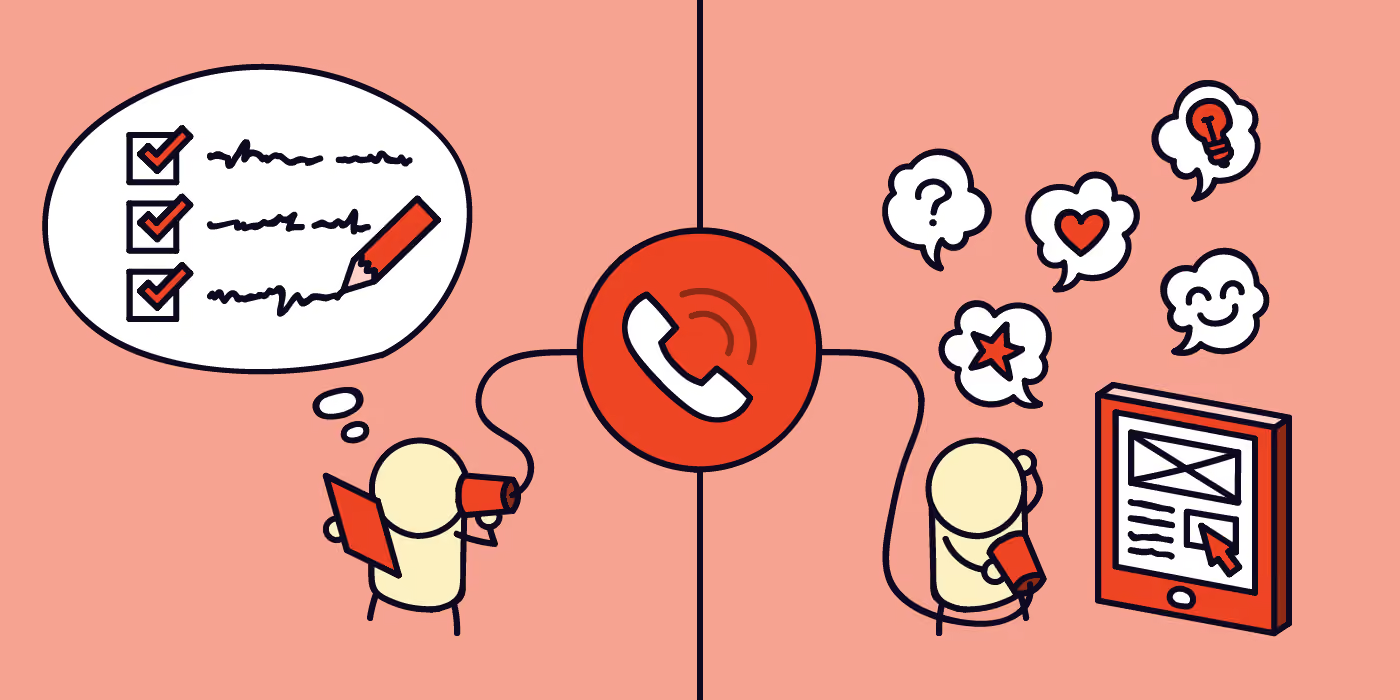
Like all qualitative research methods in UX, user interviews conducted over the phone have their pros, cons and challenges. Sometimes they are your best or only option. We’ve all been in situations where we’ve had to do the best we can with what we have because it sure beats doing nothing at all. It might be that your participants are remotely located and maybe you don’t all have access to the same technology — access to technology is a privilege! Or maybe you do and that technology just isn’t playing the game and you have to improvise. Maybe you work in a secure environment that puts all kinds of limitations on your research or maybe it’s something else entirely.
One of the biggest challenges of running a user interview over the phone is that unless you’re doing it via video call, the communication is entirely verbal. There’s no body language for you to communicate or observe, you can’t talk with your hands or draw something out on a page and you can’t control the environment in which your participant dials in from. That said, it absolutely can be done and it is possible to gather useful and usable insights for your project by running a user interview over the phone. Here are 8 tips to help make it happen.
It’s very important that you dial into a phone-based user interview from a location that is free from distractions and excessive background noise. You don’t want to have to keep asking your participant to speak up or repeat themselves because you can’t hear them and they shouldn’t have to listen to your colleagues sharing Game of Thrones spoilers in the background. In my experience, quiet spaces aren’t always available at short notice and it pays to plan ahead. If you can, book a meeting room in advance, arrive early and make sure you book extra time either side of your interview time slot so that any meetings booked before yours will have ample time to clear out.
It can also help to headphones and try to find a meeting room that is quiet and not right next to another one with glass walls because, as I’ve learned the hard way, sound carries and it can be just as disruptive as dialing in from an open plan office environment! If a quiet space isn’t available in your workspace, consider making the call from home if you can or from some other quiet space outside of the office. This might seem obvious, but I see mistakes around call location happen all the time. Participant experience matters and the environment you dial in from can have a big impact on that.
Just like you need to plan your call location ahead of time, it’s also best if your participant does too and you’re the best person to help them do that. I once had a participant dial in from a moving car with all the windows rolled down and another from a busy call center environment — both scenarios could have been avoided. A great way to help your participants plan ahead is to politely ask them dial in from somewhere quiet when you first book the session. You might include this information in the calendar invite along with all the other helpful details you’ll be providing e.g., contact details, session details and instructions for any technology you might be using to run the call. Keep it light and friendly and maybe list it as the ‘where’ for the meeting e.g., Where: Please dial in from a quiet location so we can chat.
Sometimes despite your best efforts, a participant may still join the session from a less than desirable location. They might not be aware of how loud the background noise in their office is or they may have forgotten to go somewhere quiet. Maybe they’ve unexpectedly needed to work from home and their dog won’t stop barking. When this happens, it is best to try to see if they’re able to move to a better location away from the noise and distractions. Toughing it out rarely works and can derail the entire session wasting both your time and the participant’s. Be patient and empathetic with them and consider exploring whether it’s possible to reschedule if it can’t be resolved then and there.
Participant responses will be entirely verbal and you’ll want to factor in extra time to ask clarifying and further probing questions. If you plan to go in with a pre-prepared list of questions, keep it brief. It’s totally fine to have a larger overall list of questions you’d like to ask — especially for cases when participants are super articulate and rip through them quickly — but limit the number of ‘must-ask’ questions as much as you can, otherwise you might not get through them all.
And on that note, tip #3 does not mean you should hold an extra long session to compensate — nobody wants to sit on the phone for an hour! It can be exhausting and you don’t know if your participant is having to hold the phone up to their ear the entire time — ouch! Keep the session length to under 30 minutes in total. If you feel that’s not enough time to get the answers you need, consider diversifying your approach by running your research in multiple parts.
You might follow up with a short survey after your session or you might include a few additional questions in your screener before the interview to gather more context from your participants. Keep these brief, don’t ask anything you don’t actually need to know and be mindful of taking up too much of your participants’ time — they are giving you a gift, so don’t overdo it.
Some people are quite comfortable talking to complete strangers over the phone and some people aren’t. You’re going to come across all types of people and you may even feel a little nervous before each session — we’ve all been there! I think it’s important to recognize upfront that awkward interruptions and silences in the conversation are going to happen and to embrace it with confidence and humor. It’s not a big deal and your participant will likely be just as nervous as you are. Tackle it together. Keep the conversation light and humorous — make a joke, and if you interrupt the participant, apologize and keep going. Smiling when you talk can also help make you both feel more comfortable — you’ll feel better and they’ll hear the warmth in your voice that will put them at ease too.
With all those juicy insights being delivered entirely verbally down the phone, it’s a good idea to record the conversation if you can. You might miss something and recording the session will allow you to go back to it. I’d also recommend avoiding taking detailed notes during the call. Just immerse yourself in the conversation and type your notes up later from the recording.
Everyone has their own unique approach and style to running research. I’m someone who finds it hard to focus when talking on the phone and I’ve noticed that it’s much easier if I don’t have to do anything else! Do what works for you, but definitely consider recording those sessions where possible to help ensure research traceability and make life easier when sharing with your team. Just note that you’ll need to ask your participants if it’s OK that you record the call.
A silver lining to the challenges of running user interviews over the phone is that your participant can’t see you. You don’t have to worry about how you’re dressed or how you’re sitting or keeping your facial expressions in check. You can have your planning notes and questions lists spread out in front of you or up on your screen without having to worry about them being distracting or potentially leading. You can put yourself on mute if you have to and you get to dial in from a really comfortable place. Make the most of it! Run the session from an environment where you feel relaxed and confident. No matter how many times I’ve done this, I always feel a twinge of the jitters right before I make the call and being in a comfortable and safe space can make all the difference.
Sending a quick thank you note after a user interview conducted over the phone is a nice way to add a human touch to close out the participant experience. It’s also a good time to deliver or confirm details around how any incentives will be granted to the participant for their time.
So there are 8 tips to help you ace interviewing users over the phone! What are your top tips?

Few UX research techniques can surpass the user interview for the simple fact that you can gain a number of in-depth insights by speaking to just a handful of people. Yes, the prospect of sitting down in front of your customers can be a daunting one, but you’ll gain a level of insight and detail that really is tough to beat.
This research method is popular for a reason – it’s extremely flexible and can deliver deep, meaningful results in a relatively short amount of time.
We’ve put together this article for both user interview newbies and old hands alike. Our intention is to give you a guide that you can refer back to so you can make sure you're getting the most out of this technique. Of course, feel free to leave a comment if you think there’s something else we should add.
User interviews are a technique you can use to capture qualitative information from your customers and other people you’re interested in learning from. For example, you may want to interview a group of retirees before developing a new product aimed at their market.
User interviews usually follow the format of a guided conversation, diving deep into a particular topic. While sometimes you may have some predefined questions or topics to cover, the focus of your interviews can change depending on what you learn along the way.
Given the format, user interviews can help you answer any number of questions, such as:
It’s important to remember that user interviews are all about people's perception of something, not usability. What this means in practical terms is that you shouldn’t go into a user interview expecting to find out how they navigate through a particular app, product or website. Those are answers you can gain through usability testing.
Now that we have an understanding of what user interviews are and the types of questions this method can help you answer, when should you do them? As this method will give you insights into why people think the way they do, what they think is important and any suggestions they have, they’re mostly useful in the discovery stages of the design process when you're trying to understand the problem space.
You may want to run a series of user interviews at the start of a project in order to inform the design process. Interviews with users can help you to create detailed personas, generate feature ideas based on real user needs and set priorities. Looked at another way, doesn’t it seem like an unnecessary risk not to talk to your users before building something for them?
Before sitting down and writing your user interview, you need to figure out your research question. This is the primary reason for running your user interviews – your ‘north star’. It’s also a good idea to engage with your stakeholders when trying to figure this question out as they’ll be able to give you useful insights and feedback.
A strong research question will help you to create interview questions that are aligned and give you a clear goal. The key thing is to make sure that it’s a strong, concise goal that relates to specific user behaviors. You don’t want to start planning for your interview with a research question like “How do customers use our mobile app”. It’s far too broad to direct your interview planning.
Now it’s time to write your user interview questions. If you’ve taken the time to engage with stakeholders and you’ve created a solid research question, this step should be relatively straightforward.
Here are a few things to focus on when writing your interview questions:
Having a great set of questions is all well and good, but you need to interview the right kind of people. It’s not always easy. Finding representative or real users can quickly suck up a lot of time and bog down your other work. But this doesn’t have to be the case. With some strategy and planning you can make the process of participant recruitment quick and easy.
There are 2 main ways to go about recruitment. You can either handle the process yourself – we’ll share some tips for how to do this below – or use a recruitment service. Using a dedicated recruitment service will save you the hassle of actively searching for participants, which can often become a significant time-sink.
If you’re planning to recruit people yourself, here are a few ways to go about the process. You may find that using multiple methods is the best way to net the pool of participants you need.
Once a pool of participants start to flow in, consider setting up a dedicated research panel where you can log their details and willingness to take part in future research. It may take some admin at the start, but you’ll save time in the long run.
Note: Figure out a plan for participant data protection before you start collecting and storing their information. As the researcher, it’s up to you to take proper measures for privacy and confidentiality, from the moment you collect an email address until you delete it. Only store information in secure locations, and make sure you get consent before you ever turn on a microphone recorder or video camera.
Now for the fun part – running your user interviews. In most cases, user interviews follow a simple format. You sit down next to your participant and run through your list of questions, veering into new territory if you sense an interesting discussion. At the end, you thank them for their time and pass along a small gift (such as a voucher) as a thank-you.
Of course, there are a few other things that you’ll want to keep in mind if you really want to conduct the best possible interviews.
At first glance, analyzing the qualitative data you’ve captured from a user interview can seem daunting. But, with the right approach (and some useful tools) you can extract each and every useful insight.
If you’ve recorded your interview sessions, you’ll need to convert your audio recordings into text files. We recommend a tool like Descript. This software makes it easy to take an audio file of your recording and transform it into a document, which is much faster than doing it without dedicated software. If you like, there’s also the option of various ‘white glove’ services where someone will transcribe the interview for you.
With your interview recordings transcribed and notes in-hand, you can start the process of thematic analysis. If you’re unfamiliar, thematic analysis is one of the most popular approaches for qualitative research as it helps you to find different patterns and themes in your data. There are 2 ways to approach this. The first is largely manual, where you set up a spreadsheet with different themes like ‘navigation issue’ and ‘design problem’, and group your findings into these areas. This can be done using sticky notes, which used to be a common ways to analyze findings.
The second involves dedicated qualitative research tool like Reframer. You log your notes over the course of several interview sessions and then use Reframer’s tagging functionality to assign tags to different insights. By applying tags to your observations, you can then use its analysis features to create wider themes. The real benefit here is that there’s no chance of losing your past interviews and analysis as everything is stored in one place. You can also easily download your findings into a spreadsheet to share them with your team.
With your interviews all wrapped up and your analysis underway, you’re likely wondering what’s next. There’s a good chance your interviews will have opened up new areas you’d like to test, so now could be the perfect time to assess other qualitative research methods and add more human data to your research project. On the other hand, you may want to move onto quantitative research and put some numbers behind your research.
Whether you choose to proceed down a qualitative or quantitative path, we’re pulled together some more useful articles and things for you to read:

With UX research so closely tied to product success, setting up a dedicated research practice is fast becoming important for many organizations. It’s not an easy process, especially for organizations that have had little to do with research, but the end goal is worth the effort.
But where exactly are you supposed to start? This article provides 6 key things to keep in mind when setting up a research practice, and should hopefully ensure you’ve considered all of the relevant factors.
The first and most simple step is to take stock of the current user research situation within the organization. How much research is currently being done? Which teams or individuals are talking to customers on an ongoing basis? Consider if there are any major pain points with the current way research is being carried out or bottlenecks in getting research insights to the people that need them. If research isn't being practiced, identify teams or individuals that don't currently have access to the resources they need, and consider ways to make insights available to the people that need them.
UX research should be communicating with nearly every part of an organization, from design teams to customer support, engineering departments and C-level management. The insights that stem from user research are valuable everywhere. Of course, the opposite is also true: insights from support and sales are useful for understanding customers and how the current product is meeting people's needs.
When setting up a research practice, identify which teams you should align with, and then reach out. Sit down with these teams and explore how you can help each other. For your part, you’ll probably need to explain the what and why of user research within the context of your organization, and possibly even explain at a basic level some of the techniques you use and the data you can obtain.
Then, get in touch with other teams with the goal of learning from them. A good research practice needs a strong connection to other parts of the business with the express purpose of learning. For example, by working with your organization’s customer support team, you’ll have a direct line to some of the issues that customers deal with on a regular basis. A good working relationship here means they’ll likely feed these insights back to you, in order to help you frame your research projects.
By working with your sales team, they’ll be able to share issues prospective customers are dealing with. You can follow up on this information with research, the results of which can be fed into the development of your organization’s products.
It can also be fruitful to develop an insights repository, where researchers can store any useful insights and log research activities. This means that sales, customer support and other interested parties can access the results of your research whenever they need to.
When your research practice is tightly integrated other key areas of the business, the organization is likely to see innumerable benefits from the insights>product loop.
By now you’ve hopefully got an idea of how your research practice will fit into the wider organization – now it’s time to look at the ways in which you’ll do your research. We’re talking, of course, about research methods and testing tools.
We won’t get into every different type of method here (there are plenty of other articles and guides for that), but we will touch on the importance of qualitative and quantitative methods. If you haven’t come across these terms before, here’s a quick breakdown:
All user research methods are designed to deliver either qualitative or quantitative data, and as part of your research practice, you should ensure that you always try to gather both types. By using this approach, you’re able to generate a clearer overall picture of whatever it is you’re researching.
Next comes the software. A solid stack of user research testing tools will help you to put research methods into practice, whether for the purposes of card sorting, carrying out more effective user interviews or running a tree test.
There are myriad tools available now, and it can be difficult to separate the useful software from the chaff. Here’s a list of research and productivity tools that we recommend.
Here’s a collection of research tools that can help you gather qualitative and quantitative data, using a number of methods.
These tools aren’t necessarily designed for user research, but can provide vital links in the process.
With some idea of the research methods and testing tools you’ll be using to collect data, now it’s time to think about how you’ll manage all of this information. A carefully ordered spreadsheet and folder system can work – but only to an extent. Dedicated software is a much better choice, especially given that you can scale these systems much more easily.
A dedicated home for your research data serves a few distinct purposes. There’s the obvious benefit of being able to access all of your findings whenever you need them, which means it’s much easier to create personas if the need arises. A dedicated home also means your findings will remain accessible and useful well into the future.
When it comes to software, Reframer stands as one of the better options for creating a detailed customer insights repository as you’re able to capture your sessions directly in the tool and then apply tags afterwards. You can then easily review all of your observations and findings using the filtering options. Oh, and there’s obviously the analysis side of the tool as well.
If you’re looking for a way to store high-level findings – perhaps if you’re intending to share this data with other parts of your organization – then a tool like Confluence or Notion is a good option. These tools are basically wikis, and include capable search and navigation options too.
A pool of participants you can draw from for your user research is another important part of setting up a research practice. Whenever you need to run a study, you’ll have real people you can call on to test, ask questions and get feedback from.
This is where you’ll need to partner other teams, likely sales and customer support. They’ll have direct access to your customers, so make sure to build a strong relationship with these teams. If you haven’t made introductions, it can helpful to put together a one-page sheet of information explaining what UX research is and the benefits of working with your team.
You may also want to consider getting in some external help. Participant recruitment services are a great way to offload the heavy lifting of sourcing quality participants – often one of the hardest parts of the research process.
Perhaps one of the most important parts of being a user researcher is taking the findings you uncover and communicating them back to the wider organization. By feeding insights back to product, sales and customer support teams, you’ll form an effective link between your organization’s customers and your organization. The benefits here are obvious. Product teams can build products that actually address customer pain points, and sales and support teams will better understand the needs and expectations of customers.
Of course, it isn’t easy to communicate findings. Here are a few tips:

Did you know that we process visuals 60,000 times faster than text? That’s according to some interesting research from the company behind the Post-it Note. Humans are visual creatures, and there’s a reason video is hard to beat when it comes to taking on new information – especially interesting video.
With that in mind, we’ve asked our user researchers for their favorite TED talks for people getting started in the UX space. We’ve also included 2 extra videos we think are definitely worth watching.
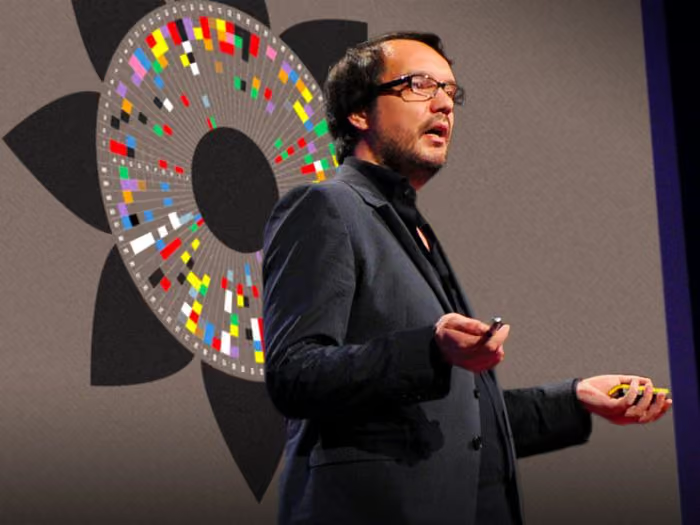
What it’s about: David McCandless explains how complex datasets (whether on military spending or even something like Facebook status updates) can be transformed into beautiful visualizations to unearth previously-unseen patterns and connections. The point of this talk is essentially that good design through visualizations is the key to making sense of the huge quantities of data available today.
About the speaker: David McCandless is a data journalist and information designer, founder of the Information is Beautiful blog.
What it’s about: Designer Rochelle King explains her journey overhauling the Spotify interface, in which she was challenged to combine the various interfaces of the product into a single layout. She covers the process of redesigning the website as well as how to best manage the relationships between designers, users and data.
About the speaker: Rochelle King was the global vice president of user experience and design at Spotify and is now vice president of product creative at Netflix.
What it’s about: Margaret Gould Stewart (whose designs have undoubtedly touched hundreds of millions of people) speaks about the 3 rules for design at scale, and points out that even tiny tweaks can cause either global outrage or have sweeping positive impacts.
About the speaker: Facebook's Director of Product Design, Margaret Gould Stewart also worked at YouTube. She certainly has the right experience for this topic.
What it’s about: The man (no, not that man) behind the original Apple iPod shares some of his tips for noticing and driving change – specifically the importance of noticing the little things. It’s a light, funny talk that’s as useful for UX researchers as it is for designers.
About the speaker: Tony Fadell is an Apple veteran and creator of the original iPod. After that, he moved onto Nest, the home automation company that was eventually acquired by Google.
What it’s about: David Pogue presents one of the more lighthearted TED talks, running through some of the worst user interface designs and some of the underlying principles that went into their design. As just one example, he talks about the different approaches to logging off that Microsoft and Apple use, and at one point he breaks out into song.
About the speaker: David Pogue is a bestselling author, columnist for the New York Times covering personal technology and technology correspondent for CBS News.
What it’s about: Vulnerability researcher Brené Brown delves into one particularly deep human insight she came across during her research. She explains that this insight sent her on a journey to understand both herself and humanity. It’s not strictly UX research, but this talk has valuable learnings for every UX professional.
About the speaker: Brené Brown is a researcher who focuses on vulnerability, courage, shame and authenticity. She wrote the bestselling book Daring Greatly: How the courage to be vulnerable transforms the way we live, love, parent and lead.
What it’s about: One of the most important skills for any UX professional is communicating with others, and this talk by Julian Treasure holds some valuable advice. He explains the “how-to’s of speaking”, including how to speak with empathy and exercises for warming up your vocal chords.
About the speaker: Julian Treasure is a sound and communication expert, traveling the world and teaching people and businesses to use sound more effectively.
What it’s about: Figuring out motivation is a constant puzzle for user researchers. Career analyst Dan Pink explores motivation in this talk, examining the fact that traditional rewards aren’t actually as effective as most think.
About the speaker: Dan Pink was Al Gore’s speech writer before heading into the world of career analysis. He’s also written 6 books, including the bestseller When: The Scientific Secrets of Perfect Timing.
