Subscribe to OW blog for an instantly better inbox
Oops! Something went wrong while submitting the form.

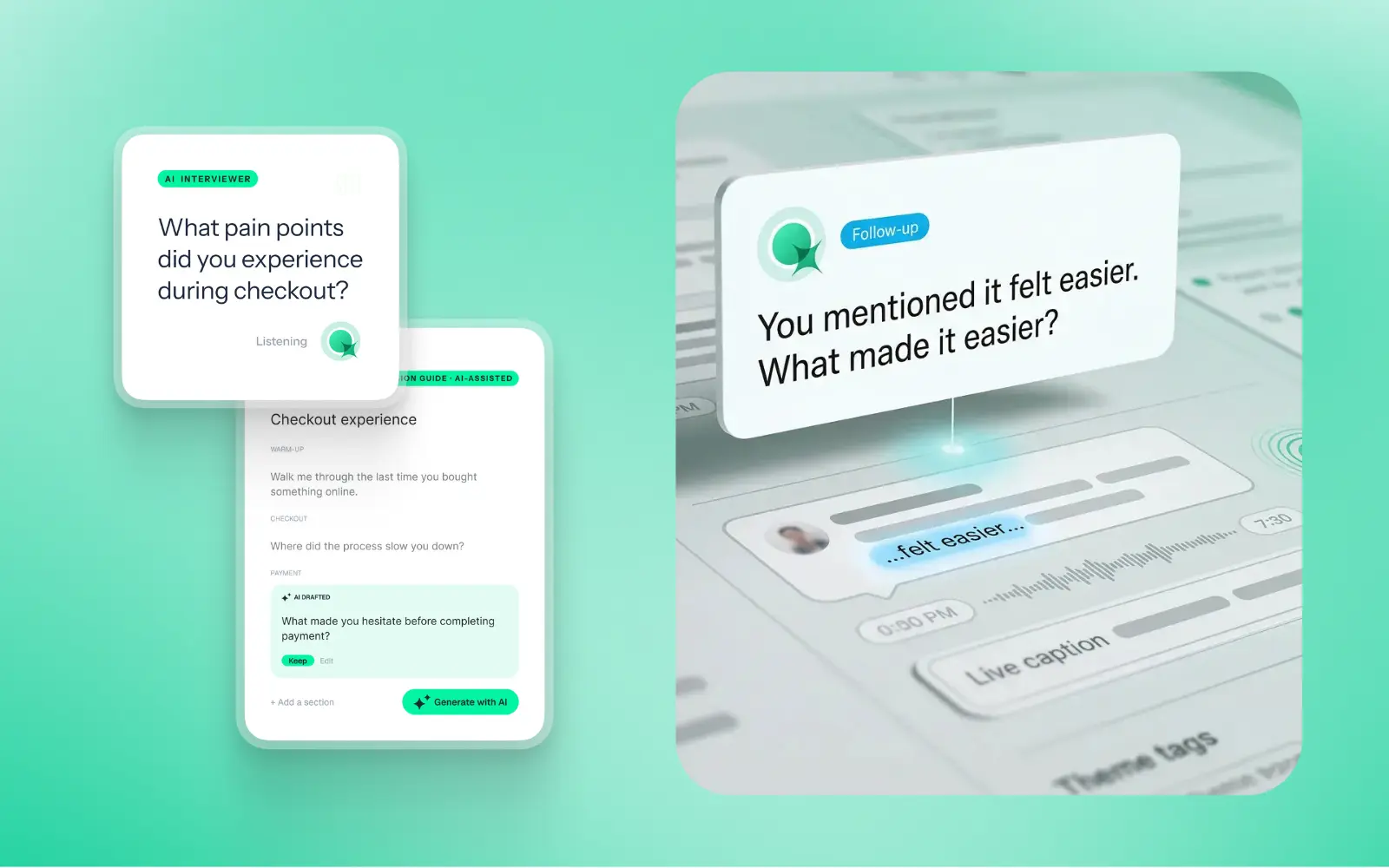
AI-moderated interviews are moving from experiment to everyday workflow. But for anyone who cares about user experience, the real question isn’t whether an AI can ask good questions. It’s whether the person on the other side wants to answer them. And that comes down to the design more than the model.
People are more comfortable talking to AI than you might expect. In an Adobe Express survey of 1,005 US consumers, 61% said they were comfortable having conversations with AI-powered systems. A COPC study across six countries found people who knew they were talking to AI reported 34% higher satisfaction than those who weren’t told.
But a quick chat with a bot isn’t a research interview. So we put it to the test. We ran a study using Optimal’s AI Interviewer with participants at different levels of AI and UX experience, including some who were skeptical going in (and rightfully so!). Because if an AI interview only works for people who already love AI, it doesn’t really work.
Most participants described the experience as seamless, smooth, natural and even fun, including several who had reservations going in. Three things stood out.
Participants noticed that follow-ups were built on what they had just said. One put it simply:
“I really felt like I was talking to a real person.”
Another appreciated that the AI summarised their points before moving on, instead of asking the same question in different ways. That was a frustration they’d had with other AI interview tools.
Several participants found the AI easier to talk to than a live interviewer. Without a person across the table, there was less pressure to perform.
“I have no problems speaking freely.”
On-screen text alongside the spoken conversation also mattered. One participant with auditory processing difficulties called it out as a genuinely useful accessibility feature.
Not everyone was fully won over. One participant felt a human would better grasp the emotion behind their answers, though they still rated the experience positively.
Participants could pick how the conversation flowed. One chose “submit response” mode, deciding when each answer was finished. After a good first experience, they said they’d be happy to try “free form” mode next, where the AI responds naturally once they stop speaking.
Want to hear it from participants directly?
Watch the highlight reels in our full study write-up →
The takeaway reaches well beyond research tools: whether an AI conversation works depends less on the model and more on the experience designed around it. If you’re designing any conversational AI, these are worth stealing.
We built these lessons into Optimal’s AI Interviewer, an AI-moderated research tool designed to work with you, not instead of you. It helps teams run more interviews without losing the depth that makes qualitative research valuable.
Take this two-minute interactive tour to see it for yourself.
AI interviews aren’t about replacing the human side of research. They give teams another way to listen, at a scale that used to need a lot more people and time. And when the experience is designed well, participants are happy to talk.
Optimal’s AI Interviewer is now in Early Access, book a demo to learn more.
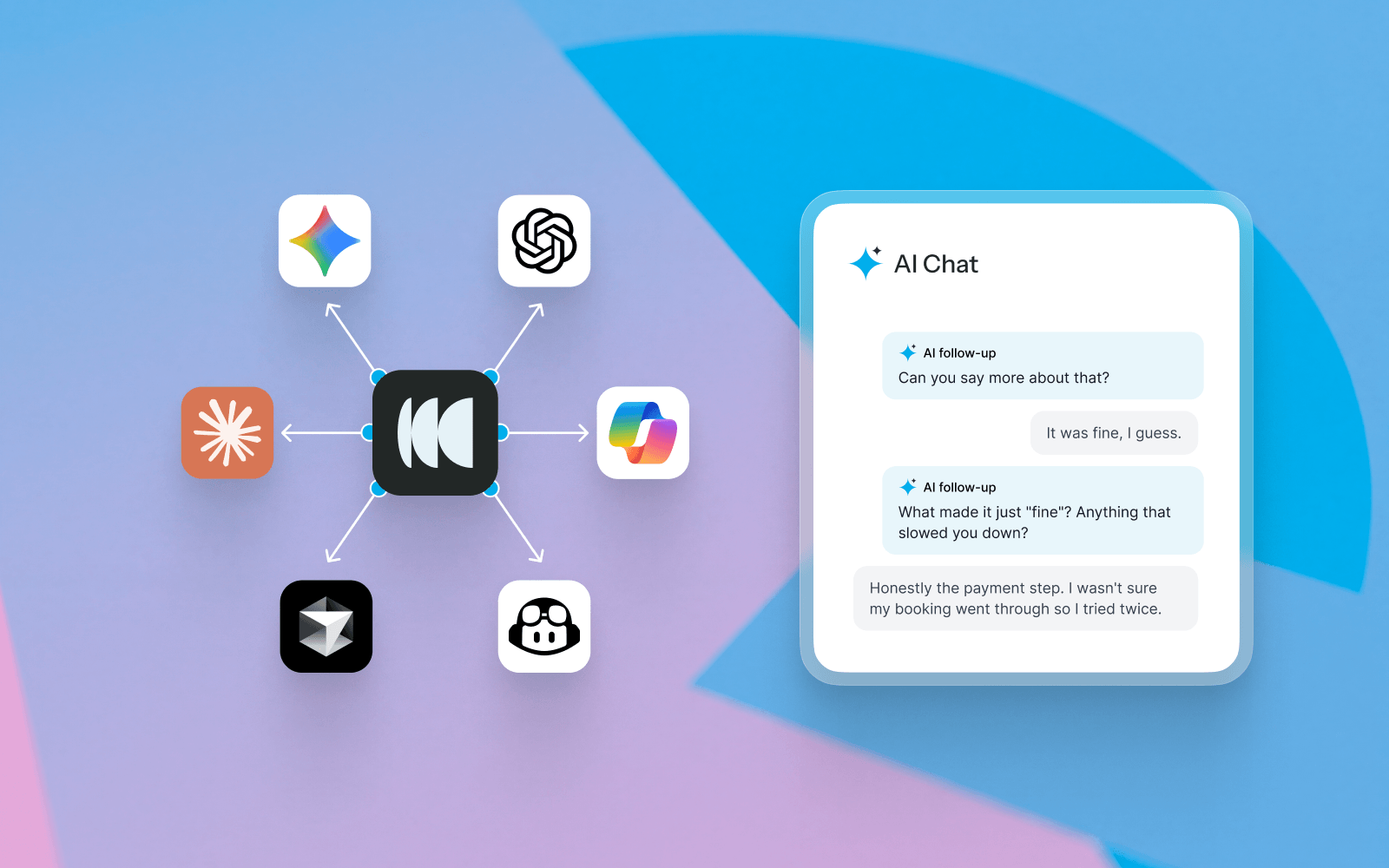
Optimal gives you two ways to use AI to ask questions about your research and explore your findings: AI Chat in Optimal Interviews and Optimal MCP.
Both let you ask questions in natural language, but they’re designed for different types of research exploration.
The simple difference: Use AI Chat to explore interview data in depth. Use MCP to explore individual studies, connect research from different studies, connect to other tools, automate existing or new workflows
Use AI Chat when you want to:
Use MCP when you want to:
Go deeper into interviews → AI Chat
Use AI Chat when your question is focused on what participants said, how they reacted, or finding evidence within interview sessions.
Go broader across research → MCP
Use MCP when your question spans multiple studies, research methods, time periods or data sources, or when you want to bring Optimal research into another AI workflow.
AI Chat is an AI-powered research assistant built into Optimal Interviews. It helps you explore interview data using natural-language questions.
Use AI Chat to find what participants said, investigate specific topics, discover supporting evidence and explore interview findings in more depth.
For example, you can ask:
You can ask follow-up questions to refine your search or investigate a finding further. AI Chat can also surface participant quotes, video clips and highlight reels, with citations that take you back to the supporting evidence in your interviews. Learn more about AI Chat.
Optimal MCP connects your Optimal research to MCP-compatible AI assistants and tools, including ChatGPT, Claude, Gemini and Cursor.
MCP is designed for broader research exploration. It lets you work with research data across individual studies or your wider Workspace, making it useful for research synthesis, cross-study analysis and AI-powered research workflows.
For example, you can ask:
Depending on the data available to you, MCP can help you explore study information, participant results, supported survey results, transcripts, task results, user paths, study metadata and AI-generated insights. Learn more about Optimal MCP.
Imagine you want to understand problems with onboarding.
Use AI Chat
Ask: “What did participants say was confusing about onboarding? Show me examples.”
Use MCP
Ask: “What onboarding issues have appeared across our research over the past six months?”
AI Chat focuses on your Interviews data, helping you explore interview responses and supporting evidence such as quotes and highlight reels.
MCP provides read-only access to research data available to you in Optimal, including study information, participant results, supported survey results, and AI insights.
Whichever tool you use, you’ll get more useful results by giving the AI enough context.
Find out more in our AI Chat best practices.
Already using AI Chat or MCP? We’d love to hear how you’re using AI to explore your research. Share your use case, workflow or favorite way to work with AI with our team.
Not using Optimal yet? See how Optimal can help you bring AI into your research workflow.
Book a demo.
.webp)
What if you could turn real user feedback into your next design iteration with a single prompt?
With Optimal MCP and Figma Agent, you can turn user research to design updates in minutes. Pull insights from your Optimal studies into Figma, then let its AI design agent update multiple frames and screens based on real participant feedback. As you gather more feedback, you can keep refining your designs, testing updated prototypes with real users and using what you learn to shape the next iteration.
Together, Optimal MCP and Figma Agent help close the loop between research and design, helping you turn real user feedback into better designs with every iteration.
Optimal MCP and Figma Agent help you connect the dots between research and design. Connect Optimal to Figma and draw on findings from one or multiple studies, including participant feedback, usability insights, transcripts and prototype task results. Figma’s AI design agent can use these insights to update existing designs or generate new ones based on your prompts.
Then, bring your updated prototypes back into Optimal to test them with real participants and see how your changes perform.
So what does this look like in practice? Imagine you've run a usability study and discovered that participants are struggling to find an important action in your product. Here’s how to put this research design loop into action.
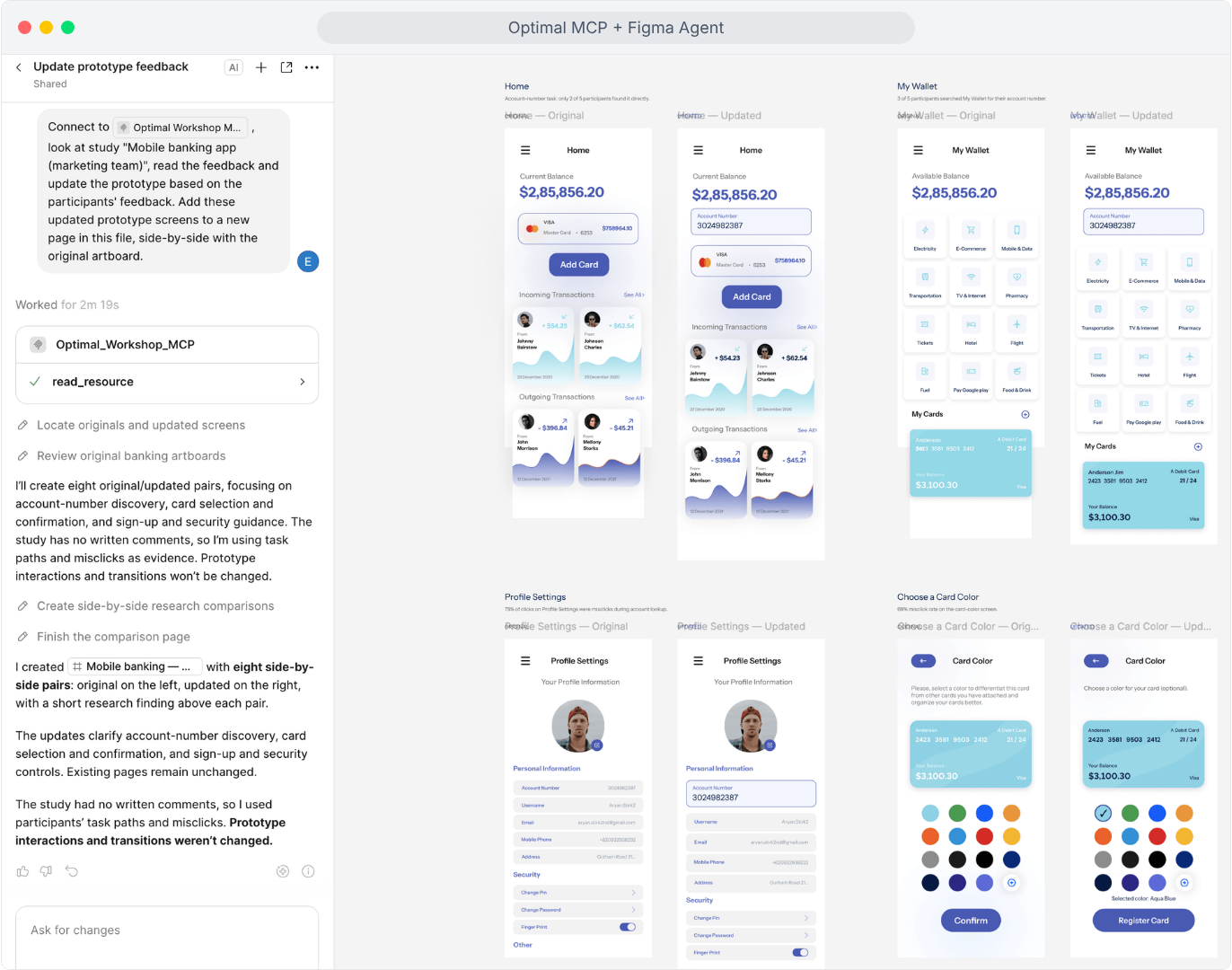
Reference Optimal MCP and one or more Optimal studies in Figma’s agent chat. Ask the agent to explore solutions to the usability issues your research revealed and generate design changes to address them.
Example prompt: "Connect to Optimal Workshop MCP, look at study "Mobile banking app", read the feedback and update the prototype based on the participants' feedback. Add these updated prototype screens to a new page in this file, side-by-side with the original artboard."
Use AI to explore alternatives, challenge your first approach and move through design possibilities faster. Then bring your expertise to the process. Evaluate the trade-offs, review the prototype flows, refine the details and decide which ideas best serve your users.
As more participant feedback to your Optimal studies comes through, ask the agent to pull feedback from those new participants to bring those fresh insights into your Figma iterations.
Here's where the loop gets even more exciting.
Put your newly updated prototype to the test with a new Optimal study. Have you made that important action easier to find? Does the new design solve the original problem? What could be even better?
You can test multiple prototypes or combine multiple methods in one study, whether you're working with a prototype, live website or web app, or AI prototype with Optimal’s Usability Testing tool or keep it focused on one prototype with Optimal’s Prototype Testing tool.
Every round of testing gives you more to work with. Every new insight creates another opportunity to improve.
AI is changing how quickly we can move from an idea to a design. Make the most of your research by connecting Optimal to Figma’s AI Design Agent with Optimal MCP to build experiences and products people love.
Get started with the Optimal MCP setup guide or check out the interactive demo.
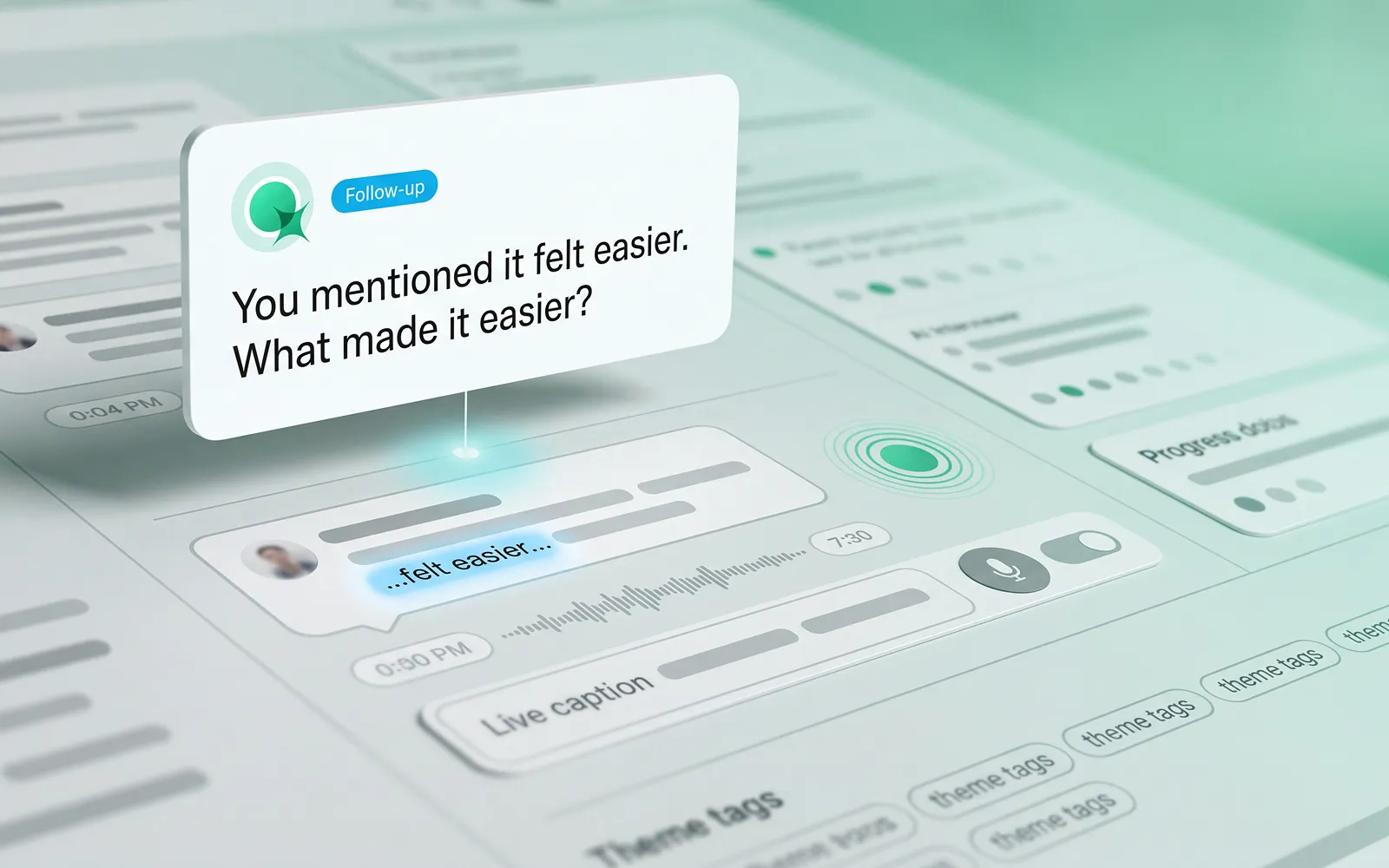
AI is opening up new possibilities for qualitative research. But for researchers, it’s not enough for an AI Interviewer to ask relevant questions. An effective AI Interviewer needs to create an experience where participants feel comfortable sharing their perspectives, have the space to explain their thinking and explore their answers in more depth.
To find out more, we ran a study using Optimal’s AI Interviewer to look at general attitudes towards AI, better understand what participants valued about an AI Interviewer experience, and what worked well and where they saw room for improvement.
One theme stood out: the value of AI interviews depends not just on the technology, but on the experience it creates for the people taking part.
As AI becomes more familiar in everyday life, the conversation is shifting from whether people will use it to when, why and under what circumstances they find it useful. In a survey of 1,005 US consumers led by Adobe Express, 61% said they were comfortable having conversations with AI-powered systems.
Another survey of more than 1,000 participants across six countries found that people who knew they were interacting with AI reported satisfaction rates 34% higher than those who weren't informed.
These findings suggest that interacting with AI isn't inherently uncomfortable for everyone. But comfort with AI doesn't automatically translate into a positive research experience. A quick customer-service interaction is different from a qualitative research interview, where people need to reflect on their experiences, explain their reasoning and sometimes share sensitive or complicated perspectives.
For researchers, the more useful question is: what makes an AI-led conversation feel comfortable, natural and valuable for participants?
In qualitative research, the quality of the conversation matters just as much as the number of responses collected.
A good AI-moderated interview should give participants the freedom to express themselves in their own words, ask relevant follow-up questions and create opportunities to explore an answer beyond the initial response, and go beyond simply moving people through a series of questions.
Here are considerations that stood out from participants interacting with Optimal’s AI Interviewer for the first time.
Qualitative research aims to uncover the reasoning behind people's choices, not just capture their first response. Relevant follow-up questions can encourage participants to elaborate, clarify an opinion or explore an experience in more depth. The ability to answer in their own words, rather than select from predefined options, is also central to gathering richer feedback.
In our study, the majority of participants described their experience with Optimal’s AI Interviewer as “seamless,” “smooth”, “natural”, and even "fun". Several were pleasantly surprised by how the interaction felt, including participants who had reservations beforehand. One participant said, "I have no problems speaking freely."
Automated highlight reel: "The overall experience was widely rated as positive and enjoyable"
On participant remarked, "It was pleasant and I enjoyed it. And you were great." Others described the AI interview format as something they had “come to expect,” framing it as routine rather than novel.
Automated highlight reel: "Overall satisfaction with the AI interview experience was high"
These responses offer an encouraging perspective on what AI-moderated research can feel like for participants with the right cadence and context. Multiple participants also highlighted that the AI Interviewer’s replies were clearly based on what they had just said, rather than following a rigid script.
One participant noted it felt like talking to a real person because responses were grounded in their own words: "I really felt like I was talking to a real person and that the responses were based off of what I what I said."
Automated highlight reel: "Contextual follow-up questions made the conversation feel natural and responsive."
Another participant highlighted how the AI concisely summarized their points before moving on, without asking the same question in different ways — something they’d found frustrating when using other AI interview tools.
People are more likely to engage when they understand what to expect and feel comfortable taking part. Several participants found the AI interview easier to talk to than a traditional interview. For some, the absence of a human interviewer reduced the pressure of the interaction, making it easier to share their thoughts.
Automated highlight reel: "Talking to an AI felt easier than a live human interview"
The experience wasn't just about how the conversation sounded either. Participants also found the on-screen text helpful for following along with the spoken interaction. One participant who experiences auditory processing difficulties specifically highlighted this as a useful accessibility feature.
These observations suggest that small details in the participant experience can make a meaningful difference. Clear instructions, the ability to follow a conversation in more than one way, and a format that feels comfortable can all help people engage with a study.
One participant noted that they felt a person would more deeply grasp the feelings and emotions behind their answers, but overall rated their experience with the AI Interviewer positively.
Comfort will vary by person and research context, so the goal isn't to assume AI moderation will suit everyone and every situation, but to provide another considered way for people to share their perspectives.
A positive AI interview experience doesn't mean every participant will prefer the same format.
With Optimal’s experience, participants appreciated the ability to choose a preferred conversational style that works best for them. One participant, who preferred greater control, initially chose the “submit response” mode. This allowed them to decide when to submit an answer and move on to the AI Interviewer's next question or follow-up.
After a positive experience with the AI Interviewer, they said they would be willing to try the “free form” option. In this mode, the AI Interviewer responds naturally when the participant finishes speaking. This highlights the value of offering choice and helping participants gain familiarity and comfort.
Clip: New comfort and willingness to try "free form"
For UX research, design, and product teams, AI Interviews offer another option for gathering qualitative feedback, creating more flexibility in how conversations take place, and supporting gathering evidence at scale.
The opportunity isn't to replace the human aspect of research. It's to give researchers more ways to listen, learn and make informed decisions.
Ready to explore AI interviews? Get in touch for a demo or find out how to access Optimal’s AI Interviewer in Early Access.
.webp)
Great research has never been about speed alone. It’s about asking the right questions, understanding the context behind them, and uncovering insights that help teams make better decisions.
Optimal's AI Interviewer is designed to support that process. It’s designed to work alongside researchers and teams, so you can move faster without losing the depth and human nuance that makes research valuable.
Before building AI Interviewer, we spoke with and surveyed researchers, designers, and product teams to how they approach interviews today and where AI could genuinely help.
What we heard was consistent:
AI isn’t useful if it ignores how your team works. So instead of building a generic interviewer, we focused on building an AI Interviewer that fits into your current workflows and keeps researchers and teams in the driver's seat.
Here’s what we learned and how we brought it to life with Optimal’s AI Interviewer.
The best interviews start with a clear understanding of what you’re trying to uncover. With the AI Interviewer, you can add your research goals, audience details, company and product context, and additional context you want the AI to consider. This means the AI doesn’t just ask questions; it understands what you’re trying to learn and helps guide conversations in the right direction.
The same context also powers AI insights, helping ensure summaries, key themes, and citations are relevant, accurate, and aligned with what you're trying to learn.
One of the concerns with AI-led interviews is not having enough control. We’ve designed the AI Interviewer with this in mind.
For each question, you can choose how deeply you would like the AI Interviewer to probe and follow-up. You decide when deeper exploration is valuable, how the conversation flows, and the AI can then carry this out on your behalf.
AI Interviewer helps remove some of the barriers that make qualitative research difficult to scale. Use it to:
This isn’t about replacing researchers. It’s about removing operational work so you can focus on higher-value work, like synthesis, storytelling, and decision-making.
Every session comes with recordings, key summaries, and AI-generated insights with clear detailed evidence. Instead of reviewing hours of footage, you can quickly find what matters and confidently back it up. Review insights across your full study, or dive deeper into individual sessions and specific questions.
On the roadmap: Once your interviews are complete, you can use AI Chat to go further with your data and explore patterns across sessions, ask follow-up questions, and validate assumptions with real evidence.
Let’s address the elephant in the room. AI-led interviews aren’t something everyone is immediately comfortable with, and that’s fair. There are real limitations.
Some research scenarios require human sensitivity and judgment. Nuance, emotion, and edge cases still benefit from a human touch. Vulnerable populations and complex topics should always be handled with care. Optimal values a human-in-the-loop approach and know an AI Interviewer isn’t always suitable. With that in mind, we made sure that:
The AI Interviewer supports your work. It doesn’t replace your expertise.
AI Interviewer is now available in early access, and we’re continuing to learn from the teams using it. If you’re looking to scale your research without scaling your workload, run interviews across time zones, and spend less time on logistics and more time on insights, we’d love for you to try it.
👉 Book a demo to see how it fits into your workflow.
Already with Optimal? Register your interest for early access.
This is Part 2 of our series, The System Behind Better Content, co-authored by Content Design Hub. You can read Part 1 here.
A content spec is a structured, testable document that defines how content should look, sound, and behave across a product, built from real user research so your team (and your AI tools) have a shared set of rules to work from. In Part 1, we showed you how you can create a content spec and what it might look like, but having the spec is only half the work. A document sitting in a folder doesn't change anything on its own, it has to be operationalized to earn its place in your workflow.
A content spec only delivers value if the whole team uses it. The spec makes that possible. If it’s in the spec, anyone can check against it. That includes product managers writing acceptance criteria, engineers writing automated test cases, and QA testers checking final screens.
A spec needs to be embedded in the places where decisions happen. This could be your team’s:
The key is to keep the spec visible to your teammates and easy to reference wherever your team works, including the AI tools your team uses.
When AI tools generate content, they use their training data, but much of the publicly available digital content used to develop AI systems is disproportionately produced in Western and North American contexts. These perspectives differ from the lived experiences, cultural contexts, and perspectives of the users you are designing for.
Without a spec grounded in user research, AI writing tools can produce content that is grammatically correct and seemingly polished, but culturally misaligned.
For an Australian student finance app, that might look like:
These are not AI trivial errors. Nor are they hallucinations. AI got these terms correct, but for a different audience.
When content is not localized, you may not only alienate your users, but also create anxiety and erode trust. In a regulated industry like financial services, it can also create compliance risk.
A content spec is one of the most effective prompt engineering assets your team can have. Prompt engineering is the practice of writing precise and reusable instructions that guide AI tools to produce consistent and predictable outputs.
When you feed your spec rules into an AI prompt, you give the model the guardrails so it doesn’t fill in the blanks and default to its training data.
Role
You’re a content designer writing for a money management app aimed at Australian young people aged 18 to 24.
Context
Users may be managing money independently for the first time. They are familiar with informal language but need to learn formal financial terminology as part of using the app. Australian financial, tax, and welfare systems have specific terms that differ from other English-speaking countries.
Task
Write content for the app onboarding flow. Users will experience this flow when they sign up for the first time. The flow includes the welcome screen and account setup steps. It’s the first time a user will encounter key financial concepts like superannuation, HECS-HELP, and Centrelink payments. Each screen should introduce one concept at a time, explain it in plain English, and tell the user what action to take next.
Output
Screen-by-screen onboarding content, including headings, body copy, and button labels. Keep all sentences under 20 words. Each screen should have one heading, no more than 3 sentences of body copy, and one call-to-action.
Constraints
Use the content spec to guide your content decisions.
Use the acceptance criteria and user story to guide your deliverables.
Key rules include:
Validation
Before finalising any content, check it against the content spec. If a term does not appear in the approved list, flag it for review rather than substituting a synonym.
Confirmation
Before you draft the content, confirm you can:
With these prompt rules, your AI tool has a strong starting point and will give you a better first draft.
The spec also helps teams evaluate AI output consistently. Instead of asking, “Does this sound right?’, you may question, “Does this align with our rules?”
Courses like AI Prompt Engineering for Content Creators can be a useful way to learn how to write effective AI prompts grounded in content design principles.
A content spec is a living system that connects user research to design decisions, team workflows, and AI tools. It's like a muscle; the more you use it, the stronger it gets. The more you add to it, the more accurate, reliable, and valuable it becomes.
Here's the full spec cycle:
The content spec keeps your product human. It's rooted in research and reflects the context of your users; how they think, speak, and make sense of the world.
AI is now a standard part of content workflows. This means that the spec is no longer optional and is no longer just an engineering tool. Without a content spec, AI tools default to someone else's language, someone else's culture, and someone else's assumptions.
Product teams that invest in a content spec now are building a system that scales, learns, and most importantly, keeps the user at the centre of every decision.
Start with research. Build the spec. Keep your users in every decision.
Meet with us to learn how teams are using Optimal to transform interviews into insights and create content that truly connects.

