
October 19, 2026
—
5 minutes

Optimal MCP + Figma Agent: Turning User Research Into Better Designs

Optimal MCP + Figma Agent

What if you could turn real user feedback into your next design iteration with a single prompt?

‍

With Optimal MCP and Figma Agent, you can turn user research to design updates in minutes. Pull insights from your Optimal studies into Figma, then let its AI design agent update multiple frames and screens based on real participant feedback. As you gather more feedback, you can keep refining your designs, testing updated prototypes with real users and using what you learn to shape the next iteration.

‍

Together, Optimal MCP and Figma Agent help close the loop between research and design, helping you turn real user feedback into better designs with every iteration.
‍
‍

How does the Optimal MCP & Figma Agent work? 


Optimal MCP and Figma Agent help you connect the dots between research and design. Connect Optimal to Figma and draw on findings from one or multiple studies, including participant feedback, usability insights, transcripts and prototype task results. Figma’s AI design agent can use these insights to update existing designs or generate new ones based on your prompts.
‍

Then, bring your updated prototypes back into Optimal to test them with real participants and see how your changes perform.
‍

So what does this look like in practice? Imagine you've run a usability study and discovered that participants are struggling to find an important action in your product. Here’s how to put this research design loop into action.

‍

Optimal MCP + Figma Agent in action

‍

‍

From research insight to your next breakthrough
‍

1. Turn user insights into new design possibilities

‍

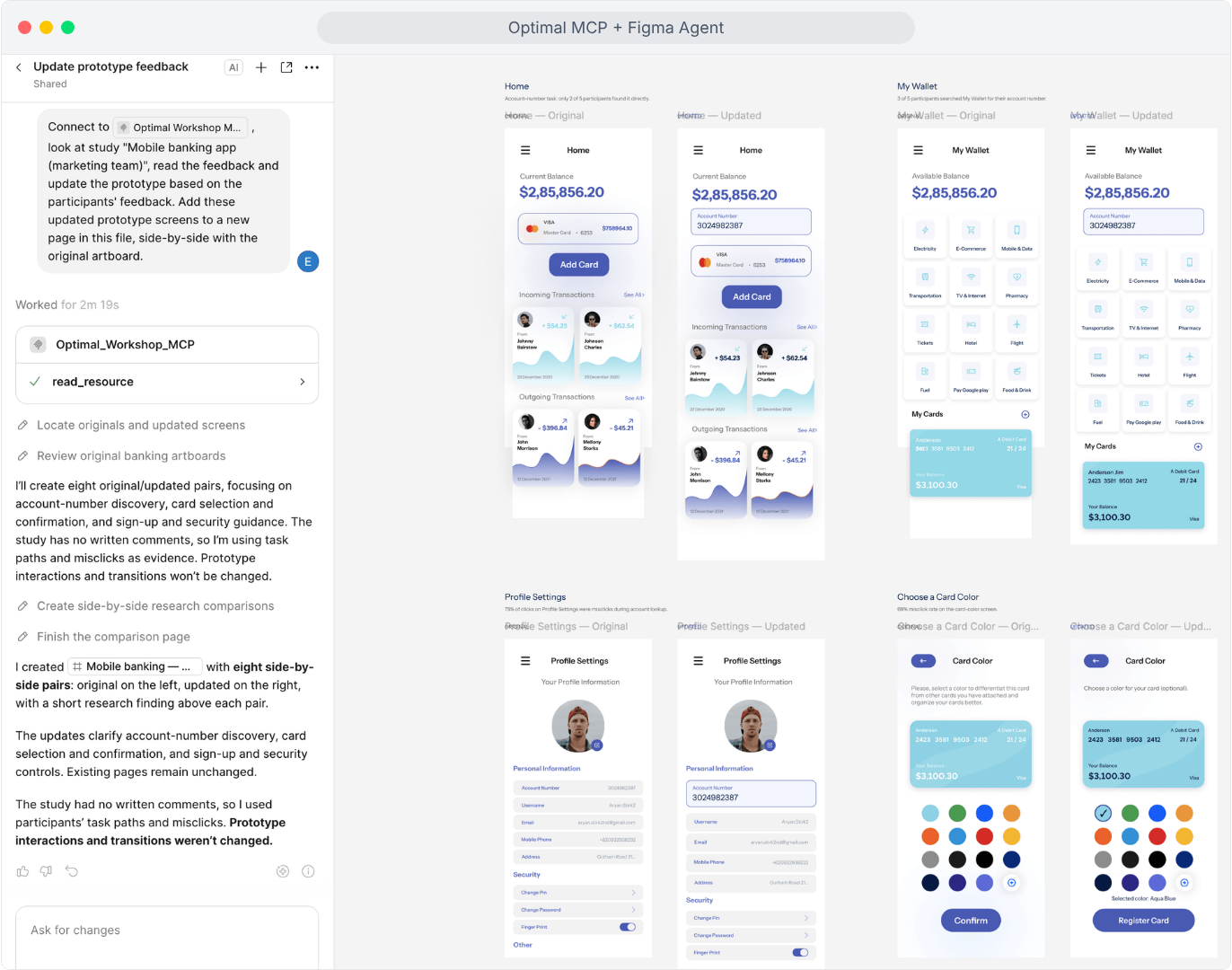
Reference Optimal MCP and one or more Optimal studies in Figma’s agent chat. Ask the agent to explore solutions to the usability issues your research revealed and generate design changes to address them.

Example prompt: "Connect to Optimal Workshop MCP, look at study "Mobile banking app", read the feedback and update the prototype based on the participants' feedback. Add these updated prototype screens to a new page in this file, side-by-side with the original artboard."

‍
‍

2. Explore further. Iterate faster.

‍

Use AI to explore alternatives, challenge your first approach and move through design possibilities faster. Then bring your expertise to the process. Evaluate the trade-offs, review the prototype flows, refine the details and decide which ideas best serve your users.

‍

As more participant feedback to your Optimal studies comes through, ask the agent to pull feedback from those new participants to bring those fresh insights into your Figma iterations.

‍
‍

3. Put your changes to the test

‍

Here's where the loop gets even more exciting.

‍

Put your newly updated prototype to the test with a new Optimal study. Have you made that important action easier to find? Does the new design solve the original problem? What could be even better?

‍

You can test multiple prototypes or combine multiple methods in one study, whether you're working with a prototype, live website or web app, or AI prototype with Optimal’s Usability Testing tool or keep it focused on one prototype with Optimal’s Prototype Testing tool.

‍

Every round of testing gives you more to work with. Every new insight creates another opportunity to improve.
‍

Ready to bring user research into your next design iteration?

‍

AI is changing how quickly we can move from an idea to a design. Make the most of your research by connecting Optimal to Figma’s AI Design Agent with Optimal MCP to build experiences and products people love.

‍

Get started with the Optimal MCP setup guide or check out the interactive demo.

‍

‍

‍

Share this article
Author
Optimal
Workshop

Related articles

View all blog articles
Learn more
1 min read

7 Ways UX and Product Designers Can Use MCP to Back Up Design Decisions

Great design decisions are grounded in evidence. But finding the right evidence isn't always easy when it's spread across multiple teams, usability tests, interviews, and surveys.

‍

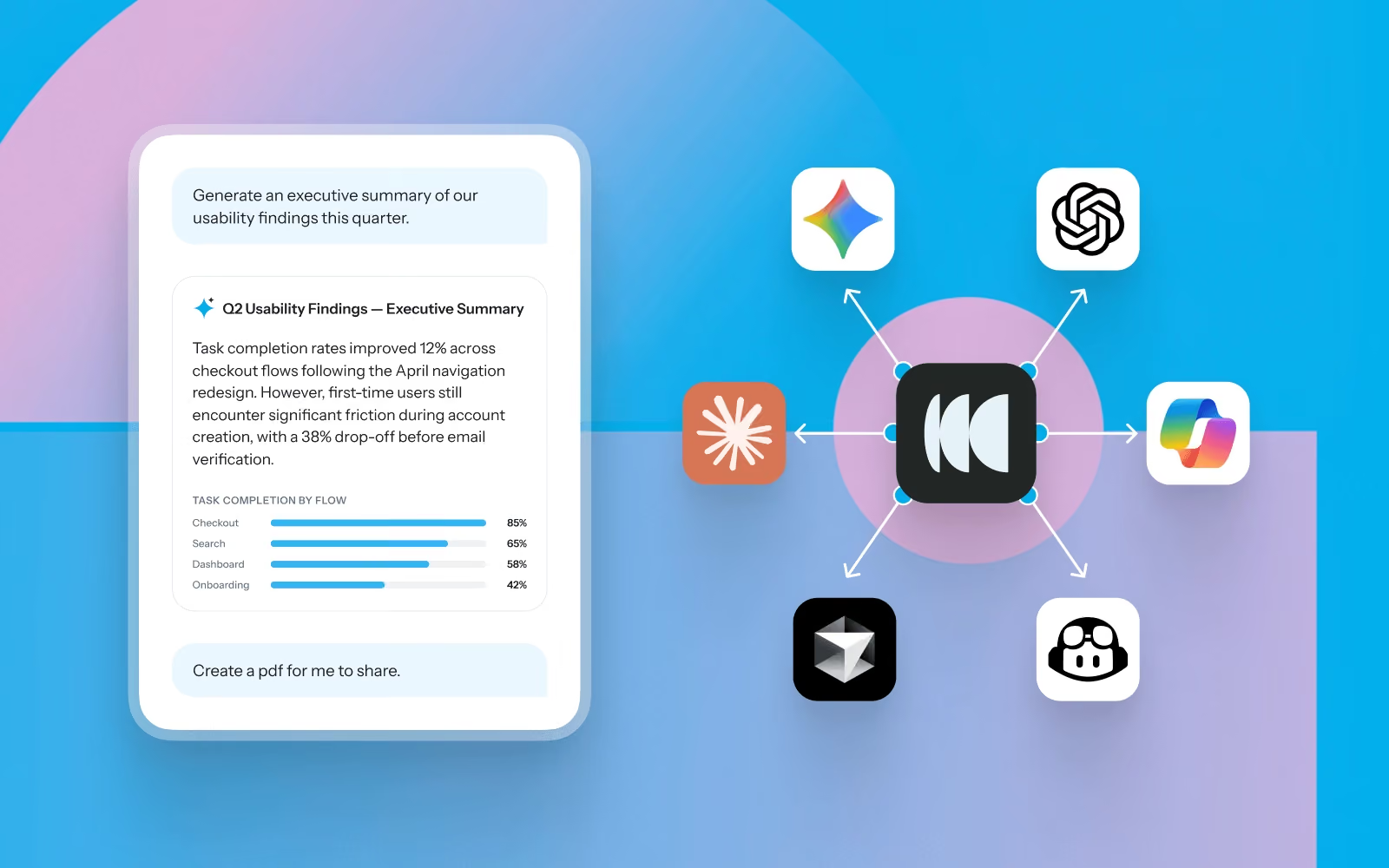
Instead of searching through reports or asking teammates if research already exists, Model Context Protocol (MCP) lets you ask questions about your research repository in natural language from AI tools like ChatGPT, Claude, Gemini, and Cursor.

‍

Whether you're designing a new feature, iterating on a prototype, or preparing for a design review, MCP helps you quickly bring user evidence into your workflow.

‍

Here are seven ways UX, product, and experience designers can use MCP throughout the design process.

‍

‍

1. Start every design project with what users already told you

‍

Before opening Figma, understand what users are trying to accomplish, where they're struggling, and what your team has already learned.

‍

Try asking:

  • What have we already learned about onboarding?
  • What usability issues have we identified in checkout?
  • What are users trying to achieve when managing their account settings?
  • What research should I review before redesigning navigation?

‍

Designer workflow

Before kicking off a redesign, ask MCP to summarize existing research. Use the findings to define design goals, identify constraints, and prioritize the problems worth solving before creating your first wireframe.

‍

‍

2. Validate design concepts before investing time in high-fidelity designs

‍

As ideas begin to take shape, use previous research to pressure-test your thinking. MCP can surface similar studies, recurring usability issues, and participant feedback that helps you refine concepts earlier.

‍

Try asking:

  • Have we tested a similar design before?
  • What patterns have users struggled with in previous prototypes?
  • What should we avoid repeating?
  • Which usability findings should influence this design?

‍

Designer workflow

While exploring concepts in Figma, keep an AI assistant open alongside your design files. Ask questions as you work so previous research continuously informs design decisions instead of becoming something you review once at the beginning.

‍

‍

3. Write stronger design rationale

‍

Design reviews often involve explaining why a particular solution was chosen. Use MCP to find supporting evidence from previous studies.

‍

Try asking:

  • Find participant quotes supporting a simplified navigation.
  • What evidence suggests users prefer this workflow?
  • Which usability studies identified this problem?
  • Show examples of participants struggling with this interaction.

‍

Designer workflow

Use participant quotes, findings, and usability observations directly in design specs, PRDs, or design review presentations to help stakeholders understand the reasoning behind your decisions.

‍

‍

4. Spot UX patterns across products and releases

‍

Looking across multiple studies can reveal broader experience patterns. MCP can identify recurring pain points, emerging behaviours, and themes that may influence future design priorities.

‍

Try asking:

  • What usability issues appear across multiple product areas?
  • Compare findings from our last five prototype tests.
  • Which friction points have become more common over time?
  • What navigation issues keep appearing across studies?

‍

Designer workflow

Before planning a larger redesign, review patterns across multiple past studies. These recurring themes often highlight systemic UX issues that individual projects miss.

‍

‍

5. Prepare for design critiques and stakeholder reviews

‍

Strong design presentations combine visual solutions with user evidence. Use MCP to generate summaries tailored to your audience.

‍

Try asking:

  • Summarize the research supporting this redesign.
  • What are the three biggest user pain points?
  • Create an executive summary for stakeholders.
  • What customer evidence supports prioritizing this work?

‍

Designer workflow

Generate concise summaries before design critiques, roadmap discussions, or leadership reviews, then pair them with your prototypes to show both the solution and the evidence behind it.

‍

‍

6. Plan better usability tests

‍

Designers frequently need to validate prototypes, but not every question requires a brand new study. MCP helps identify what has already been answered and where genuine knowledge gaps remain.

‍

Try asking:

  • What questions about this flow are still unanswered?
  • What assumptions should we validate?
  • Which participant groups haven't been represented?
  • What tasks should we include in our next prototype test?

‍

Designer workflow

Review previous findings before writing test tasks. Build studies that extend existing knowledge instead of repeating research your team has already completed.

‍

‍

7. Bring research into the tools you already use

‍

Research is most valuable when it appears alongside the work you're already doing. With MCP, your repository becomes accessible from AI tools that support everyday design work.

‍

Potential workflows

  • Generate a design brief from previous research before starting a new feature.
  • Draft usability findings directly into Confluence or Notion.
  • Format ideas into sticky notes and prep for a design sprint with Miro or Mural.
  • Create presentation-ready summaries for design reviews.
  • Turn research findings into product requirements for engineering.
  • Compare proposed designs against historical usability findings.
  • Ask follow-up research questions while designing in Figma with an AI assistant open alongside your work.

‍

Instead of switching between repositories, documents, and reports, research becomes part of your design process.

‍

‍

Designing with confidence

‍

The best design decisions aren't based on intuition alone; they're informed by a deep understanding of user behavior.

‍

MCP makes it easier to bring research into everyday design work, helping you move from evidence to action faster. Whether you're exploring concepts, validating ideas, preparing stakeholder reviews, or planning usability tests, you can use MCP to help your research repository become an active design partner. 

‍

Book a demo or log into your account to get set up with MCP. 

Optimal MCP + Figma Agent
Learn more
1 min read

Optimal MCP + Figma Agent: Turning User Research Into Better Designs

What if you could turn real user feedback into your next design iteration with a single prompt?

‍

With Optimal MCP and Figma Agent, you can turn user research to design updates in minutes. Pull insights from your Optimal studies into Figma, then let its AI design agent update multiple frames and screens based on real participant feedback. As you gather more feedback, you can keep refining your designs, testing updated prototypes with real users and using what you learn to shape the next iteration.

‍

Together, Optimal MCP and Figma Agent help close the loop between research and design, helping you turn real user feedback into better designs with every iteration.
‍
‍

How does the Optimal MCP & Figma Agent work? 


Optimal MCP and Figma Agent help you connect the dots between research and design. Connect Optimal to Figma and draw on findings from one or multiple studies, including participant feedback, usability insights, transcripts and prototype task results. Figma’s AI design agent can use these insights to update existing designs or generate new ones based on your prompts.
‍

Then, bring your updated prototypes back into Optimal to test them with real participants and see how your changes perform.
‍

So what does this look like in practice? Imagine you've run a usability study and discovered that participants are struggling to find an important action in your product. Here’s how to put this research design loop into action.

‍

Optimal MCP + Figma Agent in action

‍

‍

From research insight to your next breakthrough
‍

1. Turn user insights into new design possibilities

‍

Reference Optimal MCP and one or more Optimal studies in Figma’s agent chat. Ask the agent to explore solutions to the usability issues your research revealed and generate design changes to address them.

Example prompt: "Connect to Optimal Workshop MCP, look at study "Mobile banking app", read the feedback and update the prototype based on the participants' feedback. Add these updated prototype screens to a new page in this file, side-by-side with the original artboard."

‍
‍

2. Explore further. Iterate faster.

‍

Use AI to explore alternatives, challenge your first approach and move through design possibilities faster. Then bring your expertise to the process. Evaluate the trade-offs, review the prototype flows, refine the details and decide which ideas best serve your users.

‍

As more participant feedback to your Optimal studies comes through, ask the agent to pull feedback from those new participants to bring those fresh insights into your Figma iterations.

‍
‍

3. Put your changes to the test

‍

Here's where the loop gets even more exciting.

‍

Put your newly updated prototype to the test with a new Optimal study. Have you made that important action easier to find? Does the new design solve the original problem? What could be even better?

‍

You can test multiple prototypes or combine multiple methods in one study, whether you're working with a prototype, live website or web app, or AI prototype with Optimal’s Usability Testing tool or keep it focused on one prototype with Optimal’s Prototype Testing tool.

‍

Every round of testing gives you more to work with. Every new insight creates another opportunity to improve.
‍

Ready to bring user research into your next design iteration?

‍

AI is changing how quickly we can move from an idea to a design. Make the most of your research by connecting Optimal to Figma’s AI Design Agent with Optimal MCP to build experiences and products people love.

‍

Get started with the Optimal MCP setup guide or check out the interactive demo.

‍

‍

‍

Learn more
1 min read

Bring Your Research Data into the Rest of Your Business with the Optimal API

Research data becomes even more valuable when it can be used alongside the other data your business relies on.

‍

The Optimal API gives organizations secure, read-only access to their Optimal research data, so you can connect research with the tools and workflows your teams already use. Bring research data into a data warehouse, build dashboards, automate reporting, or combine research results with product analytics and business metrics.

‍

Instead of manually exporting research data or relying on static reports, you can create a more connected way to access and use your research at scale.

‍

‍

What is the Optimal API?

‍

The Optimal API is a secure, read-only way to access research data from Optimal programmatically. It allows your developers, IT or systems administrators, and API or integration managers to connect Optimal with other business systems.

‍

For example, you can use the API to:

‍

  • Centralize research data in a data warehouse such as Snowflake.
  • Build research dashboards in Power BI, Tableau, Looker, or other business intelligence tools.
  • Automate reporting so research data can flow into recurring reports and workflows.
  • Create an internal research repository that brings research data together in one place.
  • Connect research with business data to explore research alongside product analytics, customer data, or business metrics.
  • Build custom applications and integrations around your organization's research data.

‍

‍

Why connect your research data?

‍

As research programs grow, manually exporting and combining data can become time-consuming. Connecting research data to your existing data infrastructure can make it easier for teams to find, analyze, and share research across the organization.

‍

For example, a research team could send Optimal data to Snowflake and combine it with product analytics. A research operations team could build a centralized dashboard showing research activity across teams. A data or analytics team could automate recurring reports instead of relying on researchers to export data manually.

‍

The API helps make research data more accessible beyond the research team.

‍

‍

What research data can you access?

‍

The initial release of the Optimal API provides read-only access to:

  • Research activities
  • Research metadata
  • Participants
  • Responses and results
  • Insights and AI-generated insights

‍

This means you can retrieve research data from Optimal without changing or deleting it through the API.

‍

‍

Who can set up the Optimal API?

‍

Depending on how your organization manages technology and integrations, the person setting up access to the API might be a:

‍

  • Developer
  • IT or systems administrator
  • API or integration manager
  • Data or analytics team member

‍

You don't need to be the person building the integration to create the API application. The organization admin is responsible for creating the application and securely sharing its credentials with the appropriate person.

‍

‍

How to keep your API credentials secure

‍

Your Client Secret works like a password for your API application. Treat it as sensitive information and only give access to people or systems that need it.

‍

Follow these best practices:

  • Never share your Client Secret publicly. Don't send it through Slack, email, direct messages, or other unsecured channels.
  • Use a password manager or secrets manager. Store credentials in a secure tool such as 1Password or your organization's approved secrets manager.
  • Don't add secrets to source code. Never commit your Client Secret to a Git repository or include it in configuration files, screenshots, or other files that could be shared.
  • Limit access to credentials. Only give API credentials to the people or systems that need them.
  • Make application ownership clear. Use a descriptive application name so your team can identify what the application is used for and who manages it.
  • Delete applications you no longer use. Removing unused applications helps reduce unnecessary access.

‍

‍

Build a more connected research workflow

‍

The Optimal API makes it possible to bring research data into the systems your organization already relies on.

‍

Whether you're building a research repository, connecting research to business intelligence, automating reporting, or combining research with product data, the API can help reduce manual data handling and make research easier to use across your organization.

‍

The Optimal API is now currently available to multi-team organizations on Enterprise plans.

Seeing is believing

Explore our tools and see how Optimal makes gathering insights simple, powerful, and impactful.